




HOW TO SHARE INFORMATION WITH YOUR TEAM AT GGFL EASILY AND SECURELY
Setting Up Your Account
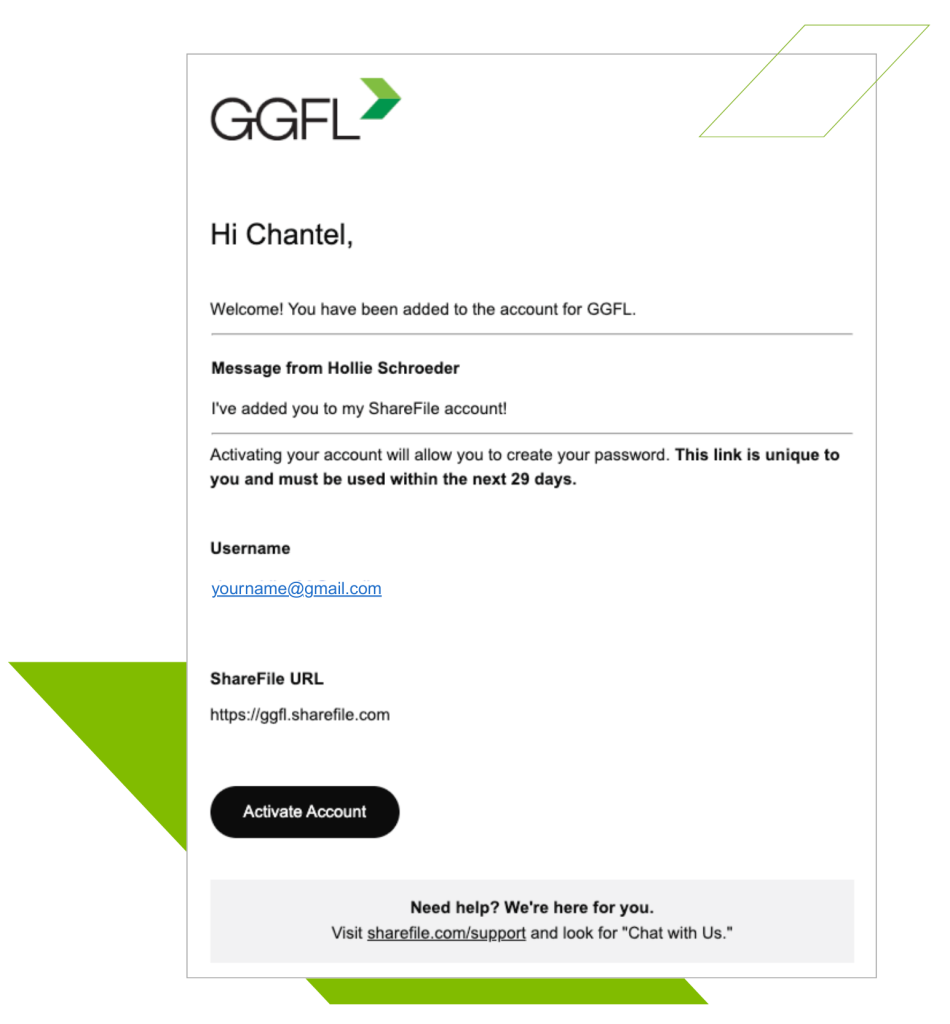
- You’ll receive an email invite from mail@sf-notifications.com – click Activate Account at the bottom of the email.
- Confirm your details and create a password to complete your account setup
Logging In
- There are a number of ways to access your ShareFile portal:
- Go directly to GGFL’s ShareFile (https://ggfl.sharefile.com)
- Click the Login & Payments link on our website (https://www.ggfl.ca/)
- Click the Click here to upload files link in our email signatures
- Click on the Upload link in the email from our team requesting files.
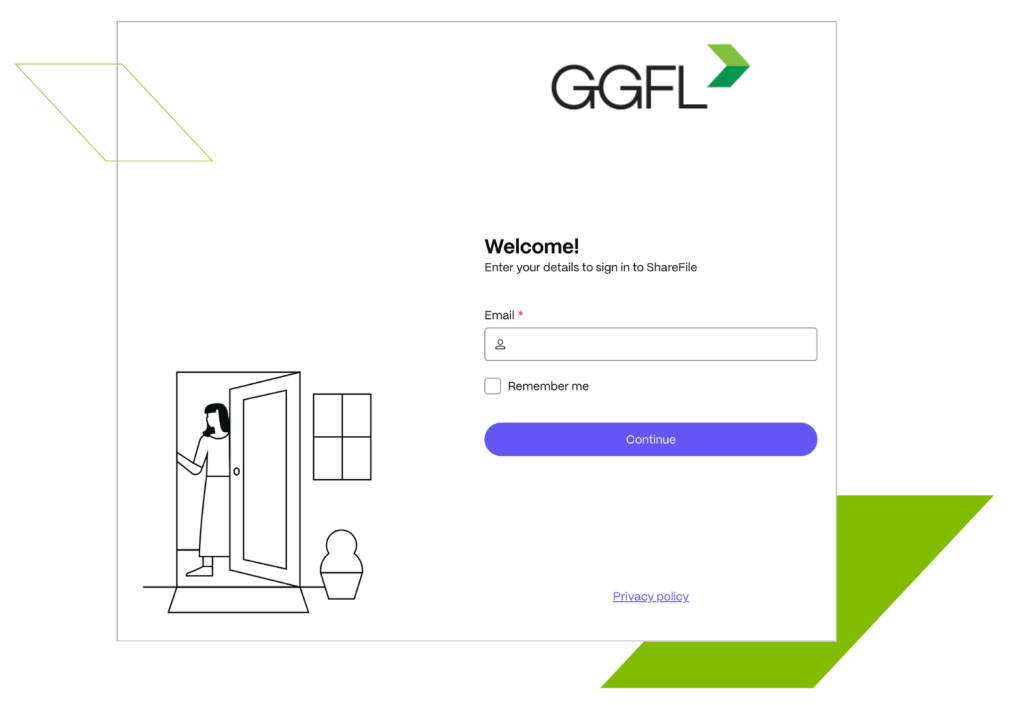
- Enter your email address and click Continue.
- If you can’t remember your password, after you enter your email and click Continue, you will have the option to click Forgot Password to reset your password.
- Enter your password and click Sign In.
Home Page
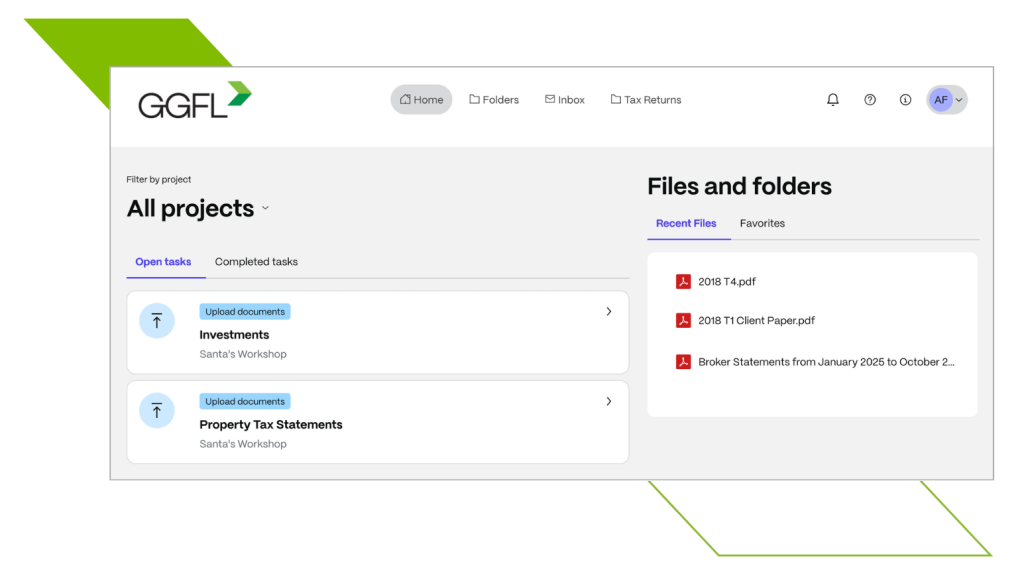
The Home Page Dashboard has several navigation options.
- Along the top are links to all the other pages:
- Home – your main page
- Folders – all of your folders
- Inbox – any secure email communications
- Tax Returns – not currently in use
- Under Home is All Projects. There are two tabs:
- Open Tasks – any document requests you have pending
- Completed Tasks – document requests you have completed.
- On the right side under Files and Folders you can see your Recent Files and Favorites (if you have selected any).
- Don’t see a folder you expected? Email us at portals@ggfl.ca.
Uploading Documents to a Folder
- If you want to upload a document independently, log into your ShareFile portal and open the Folders tab at the top and choose the folder where you want to upload your file.
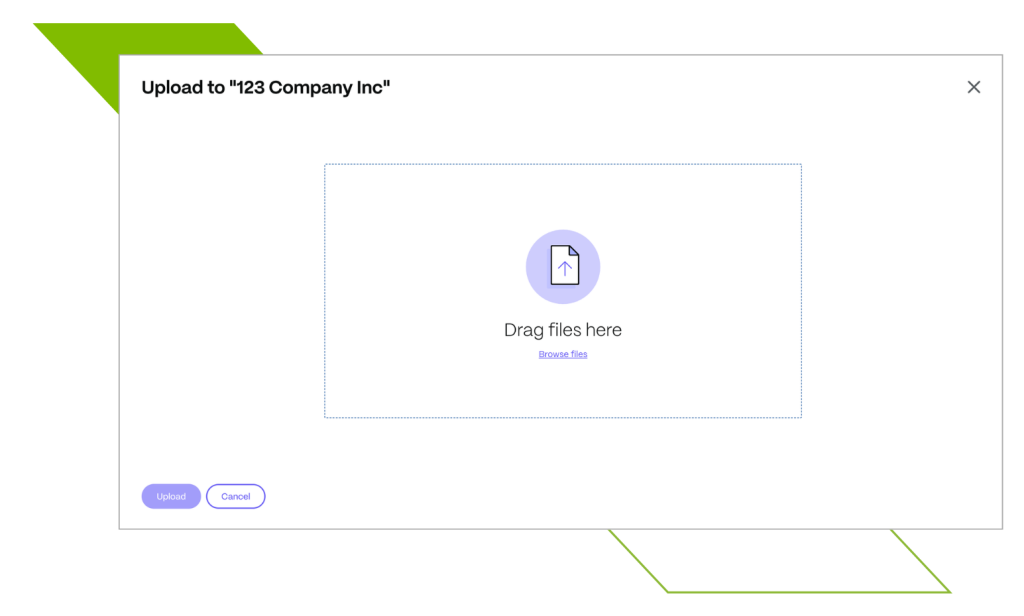
- Click on the “+” sign icon and click on Upload to go to the upload page.
- Drag and drop from your computer or click on Browse files to select them manually. Once you can see all the files you want to upload on the screen, click on Upload located on the bottom left of your screen.
- Your files will be uploaded. Upload speed can vary based on your internet connection. Please be sure that you can now see the files in your folder.
- Don’t see a folder you expected? Email us at portals@ggfl.ca.
Uploading Documents to a Project
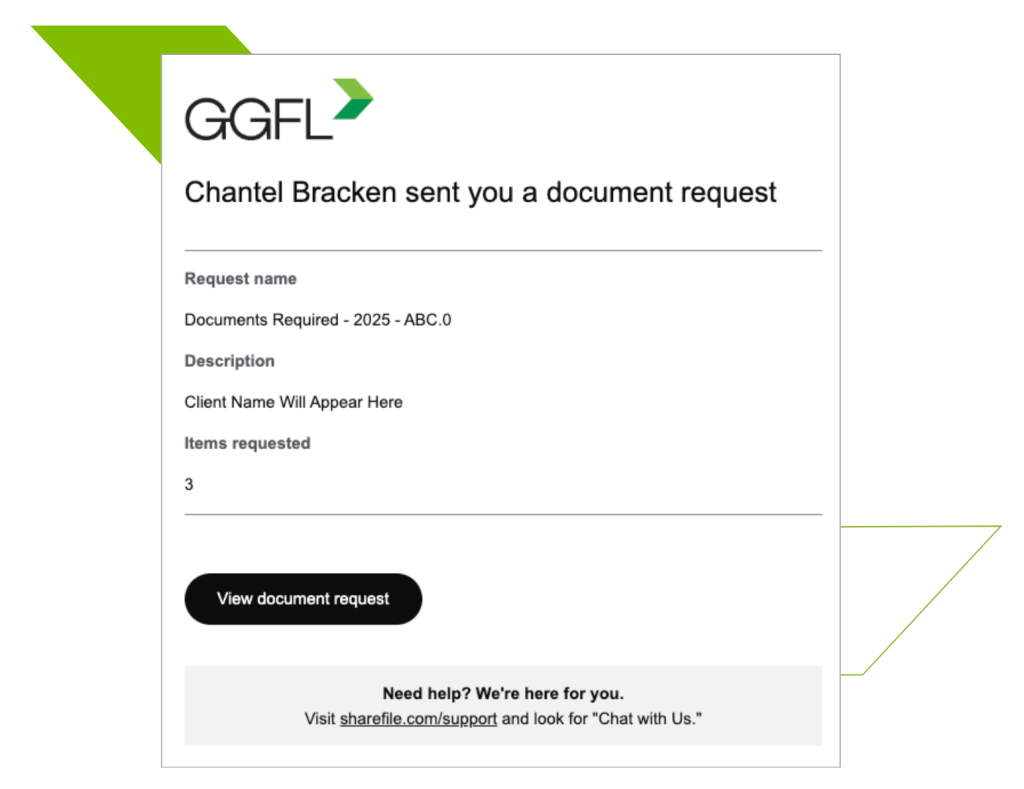
- You’ll receive an email notice for document requests. This email will come from mail@sf-notifications.com.
- Click the View document request button in the email.
- From your Open tasks, click the Task you want to upload to.
- Click Add files or drag-and-drop files.
- NOTE: If a task is not applicable to you, open the item line and click Submit without Attachments to let us know that this is not applicable and remove it from your open tasks. You can add comments or questions related to the task for our team.
- Wait for the file upload confirmation to be complete.
- Click Submit for Review.
Downloading Files
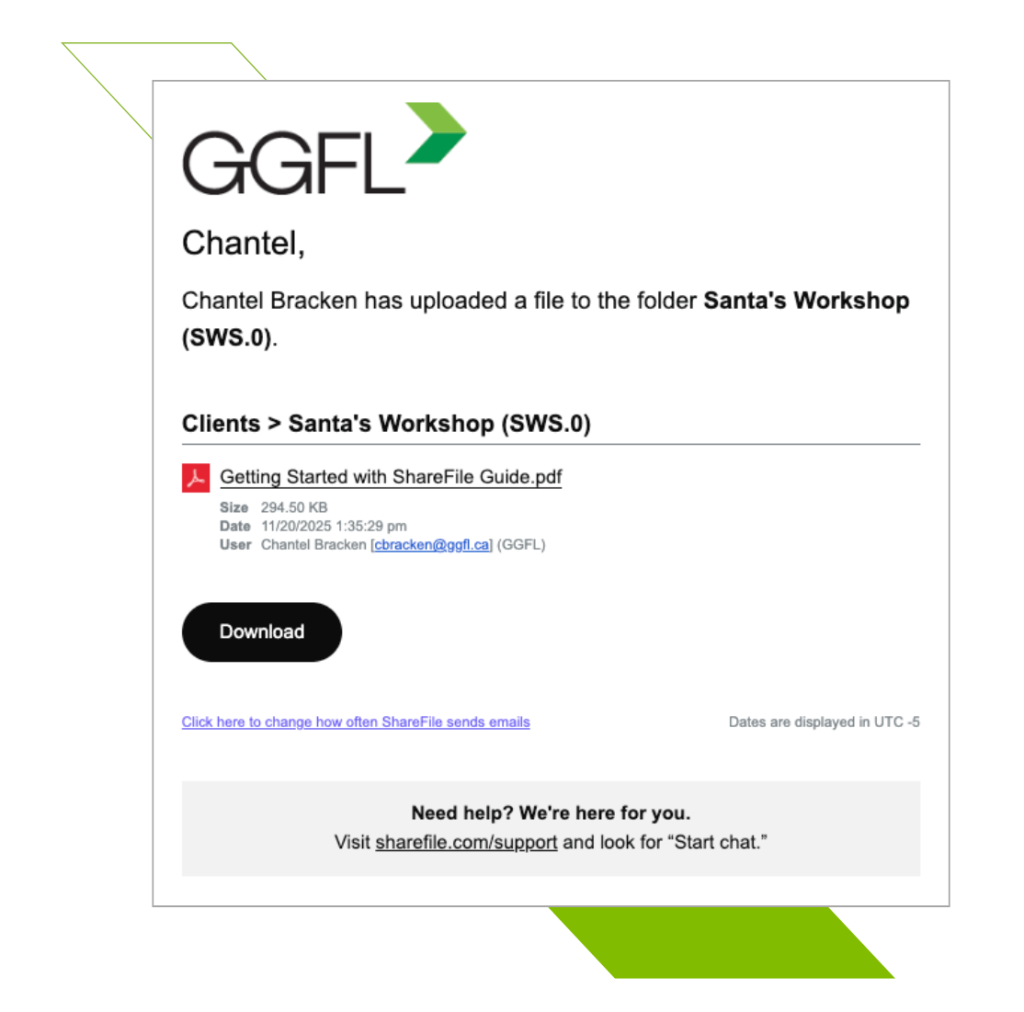
When we share a document with you through ShareFile, you will receive an email from mail@sf-notifications.com. You can also log into your portal at any time and navigate to your folders to download documents.
NOTE: You may receive tax returns, financial statements, engagement letters, or documents requiring review.
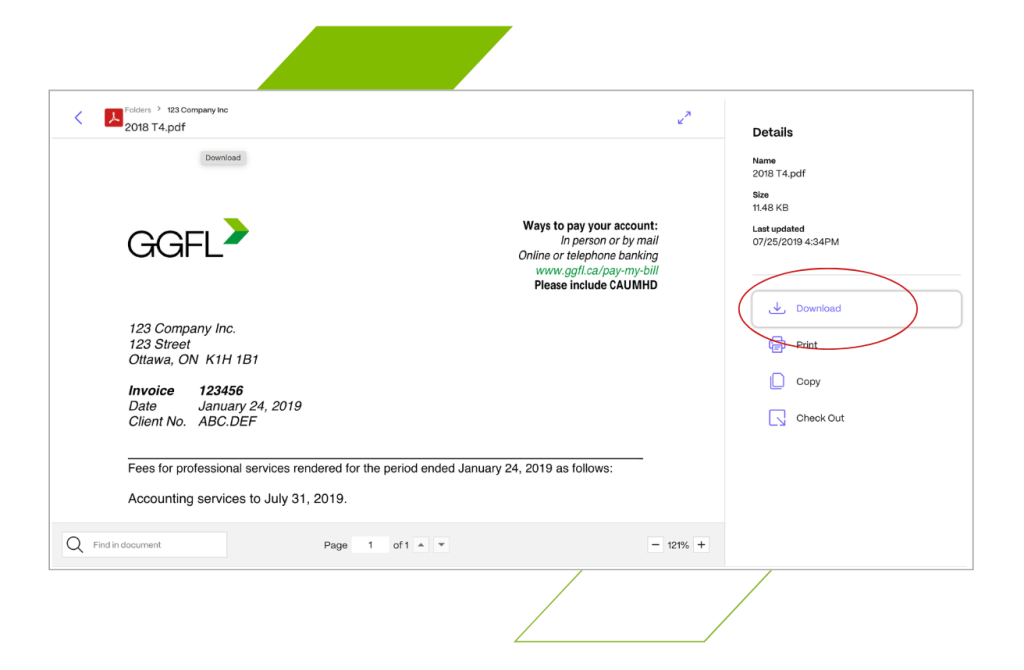
- Click on any file you want to save and select Download. You can click on any file to preview it before downloading.
- You can select one or multiple documents and download them to your computer by clicking on the Download button on the right. The file(s) will be downloaded to your computer. Depending on your browser settings, you may be prompted to select where files should be downloaded to.
NOTE: ShareFile retention policy – Documents uploaded to your portal will expire in 120 days.
Please download and retain for your records.
We’re Here to Help
If you need help using ShareFile please contact our team at portals@ggfl.ca or 613-728-5831.